> ## Documentation Index
> Fetch the complete documentation index at: https://docs.mattildapayments.com/llms.txt
> Use this file to discover all available pages before exploring further.
# Apple Pay on web with Embed
Apple Pay is the faster, more secure way to pay online using cards saved
on your customer's Apple device.
We support Apple Pay out of the box in Embed with minimal configuration.
## About this integration
Embed requires minimal configuration to get set up to process Apple Pay. Unlike
some other integrations it does not require you to sign up for an Apple Pay Developer account.
* Upload our **Domain Association File** to your website.
* Enable Apple Pay in your merchant dashboard.
## Enable Apple Pay
To enable Apple Pay, head over to your dashboard and then go to
**Connections** -> **Catalog** -> **Apple Pay**.
Next, complete and submit the form to create a new Apple Pay service.
### Registering a domain
To process Apple Pay via the web you will need to register all the domains where the buyer can
checkout. In order to do this, navigate to your Apple Pay service via the dashboard, **Connections** -> **Apple Pay** -> **Domains** -> **Add domain name**.
**Domain Association File**
Before submitting a domain name, please download the Domain Association File from
the dashboard and upload it to every domain you wish to support.
The file needs to be added to every domain in a predefined location.
```
https://{domain}/.well-known/apple-developer-merchantid-domain-association
```
This file is checked by Apple in the production environment
to verify that you have granted us permission to perform
Apple Pay transactions on your dashboard.
 ### Create sandbox transaction
To make an Apple Pay sandbox transaction the following are required.
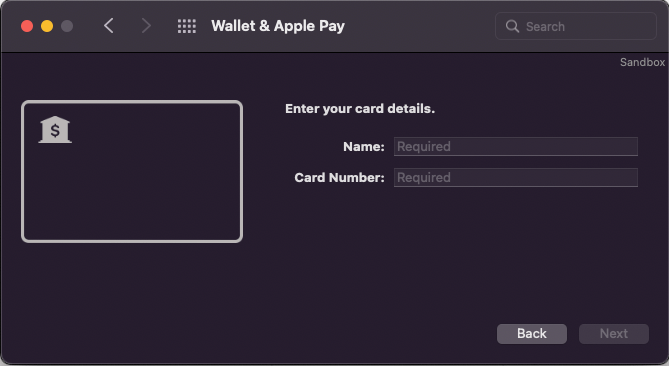
* An Apple Pay compatible device with a Sandbox Tester account on it
* One or more test cards added to the Sandbox Tester account on that device
* Embed loaded on an HTTPS site in an Apple Pay compatible browser
* Apple Pay enabled in the dashboard
* A card processor enabled that can process Apple Pay in the given currency.
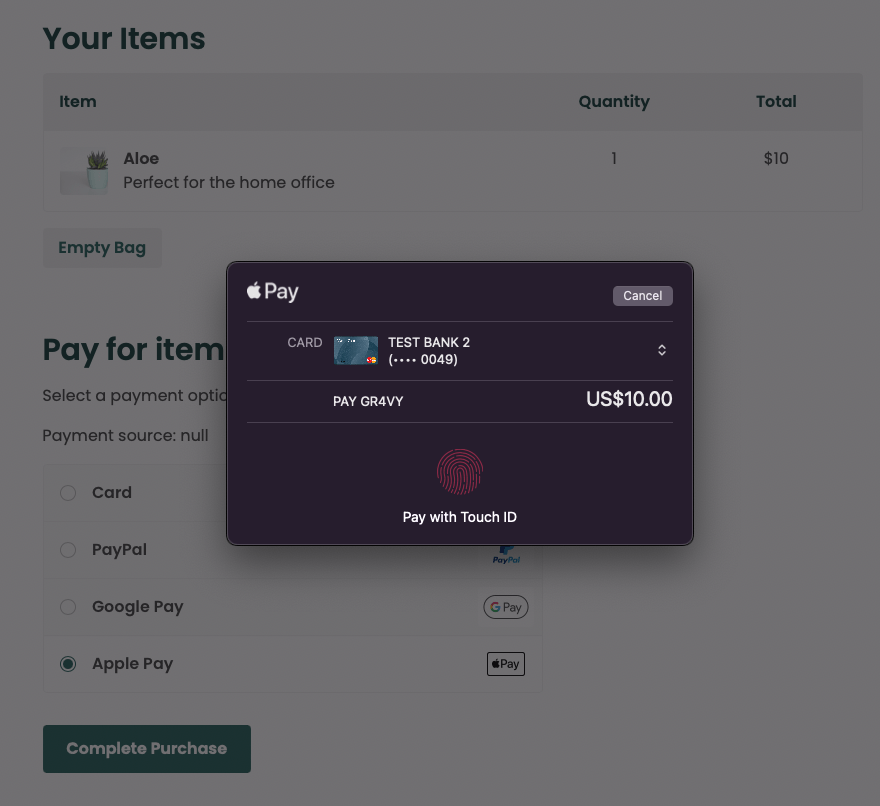
For a currency that has a card processor that supports Apple Pay, you
should see the payment option in your app. Select Apple Pay and continue
with the payment. You should see the Apple Pay sheet appear.
### Create sandbox transaction
To make an Apple Pay sandbox transaction the following are required.
* An Apple Pay compatible device with a Sandbox Tester account on it
* One or more test cards added to the Sandbox Tester account on that device
* Embed loaded on an HTTPS site in an Apple Pay compatible browser
* Apple Pay enabled in the dashboard
* A card processor enabled that can process Apple Pay in the given currency.
For a currency that has a card processor that supports Apple Pay, you
should see the payment option in your app. Select Apple Pay and continue
with the payment. You should see the Apple Pay sheet appear.
 ### Create production transaction
To make an Apple Pay transaction in production replace the Sandbox Tester account
with a regular Apple account with real cards.
### Create production transaction
To make an Apple Pay transaction in production replace the Sandbox Tester account
with a regular Apple account with real cards.